
GA4 is nearly here! From July 1st 2023, Universal Analytics will stop collating data and Google Analytics 4 will be our only focus. If you want to measure the performance of your website, and the effectiveness of any marketing campaigns like SEO or PPC, accurate analytics is a must. Hopefully, you will already have set up GA4 in preparation but don’t panic if not as there’s still some time left.
Google Analytics 4 boasts a number of settings and defaults that need to be reviewed prior to launch. If you’re unsure how best to go about this, we’ve compiled our very own checklist that we’ve utilised internally to make sure our clients are ready and now you can use it to!
Before getting started, it’s important to note that the attribution from Universal Analytics and Google Analytics 4 differ, which will be reflected in the data. You may also notice a larger or smaller total due to cookies and privacy settings. If double or halved data is appearing, there may be an issue with your set up in which case you should search for duplicate data.
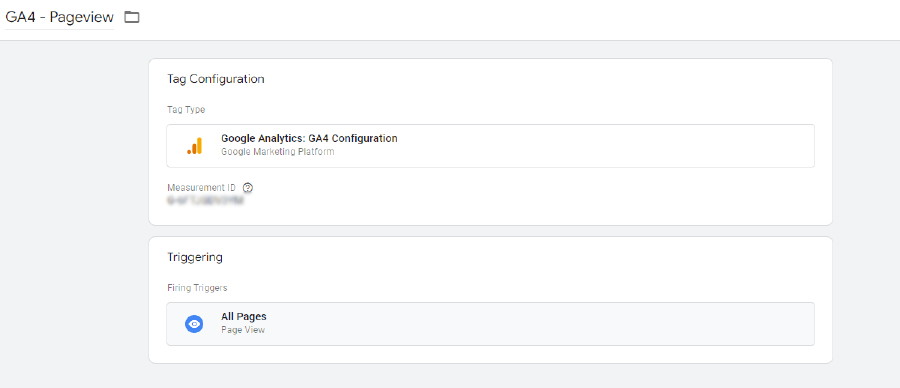
1. Is the config tag set up?
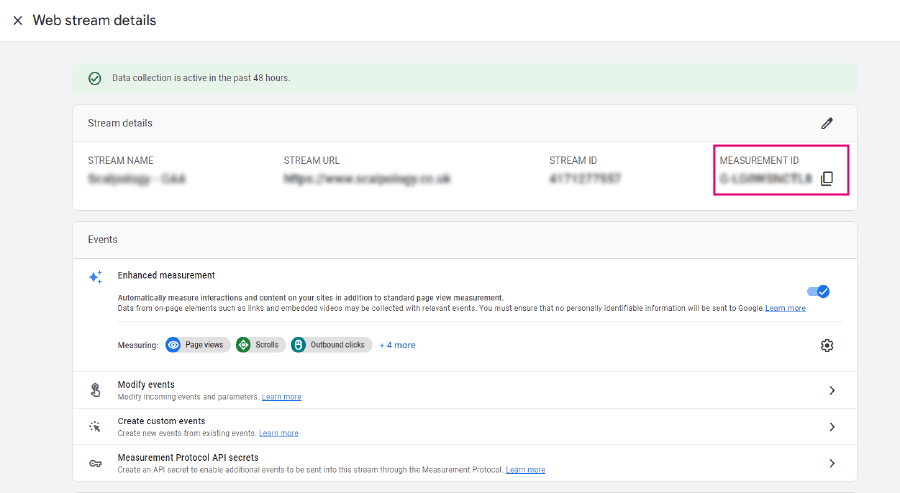
To set up the config tag, you first need to create a data stream (go to settings and data streams). If you don’t have an app, create one for the web.
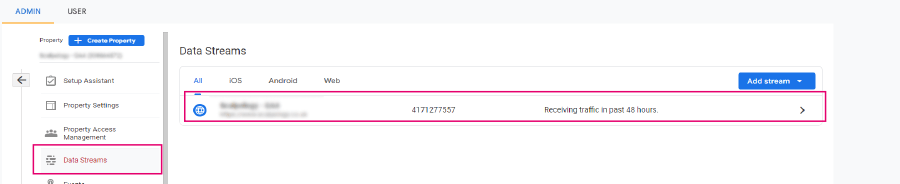
On selection of the data stream, you will be able to identify the measurement ID.
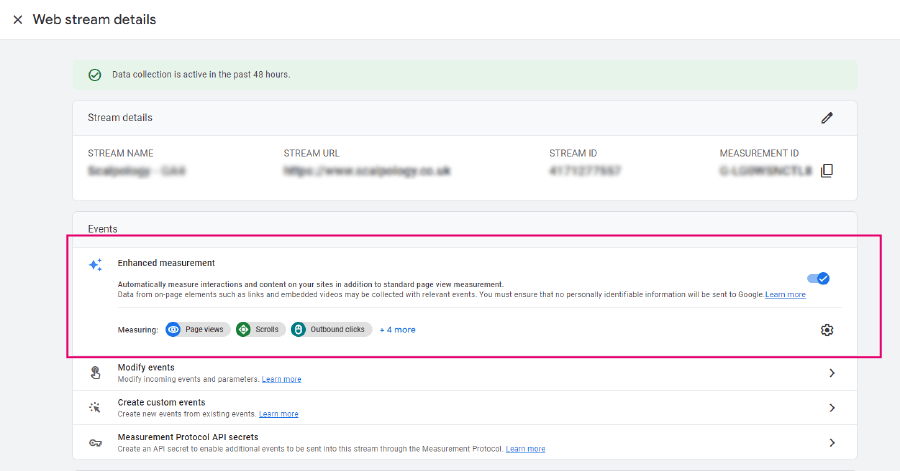
2. Have you enabled advanced measurements?
To enable advanced measurements, go to your data stream using the same steps as above.
Prepare For The Launch Of GA4
Book My Free Consultation
3. Is it possible to identify page views??
4. Is the data similar to UA?
-
- If no, is the data duplicated?
- If no, continued as planned.
- If yes, look for duplicate tags.
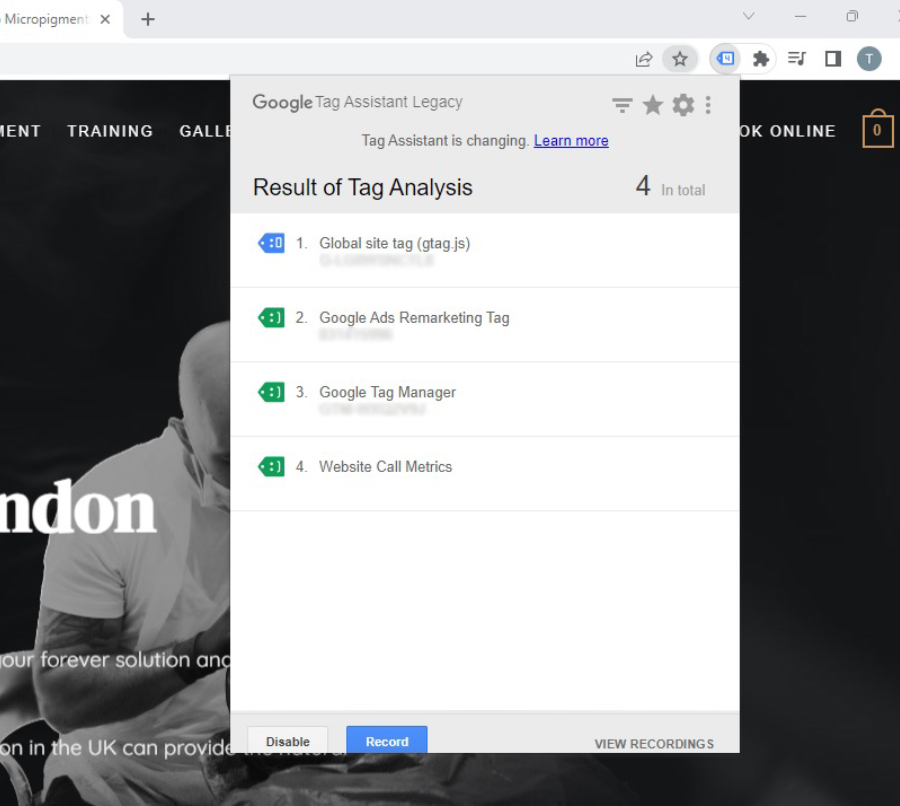
How do you look for duplicate tags?
The quickest way to check for duplicate tags is to use tag assistant chrome plug in.
5. Have events been created?
Events include not only conversions but also other tracked actions that provide valuable insights into customer behaviours page. Whilst these actions may not hold the same significance as conversions, they offer valuable information that can enhance your understanding of customer engagement.
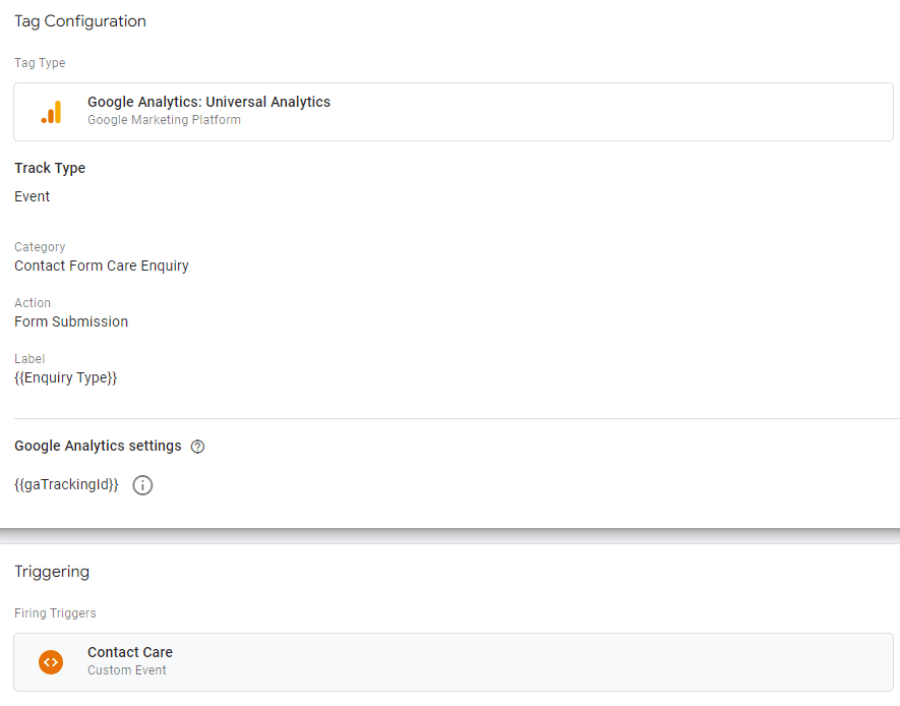
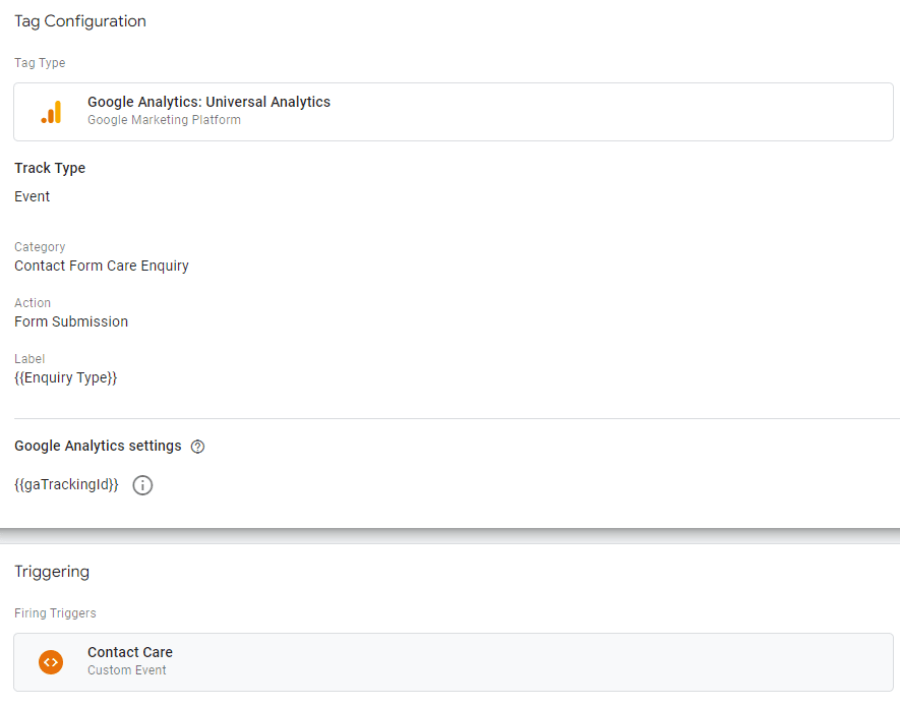
You create events by setting them up as a conversion tag on GTM or GA4.
GTM
GA4
Go to settings, select events and create an event.
Get Ready For Google Analytics 4
Arrange My Free Consultation
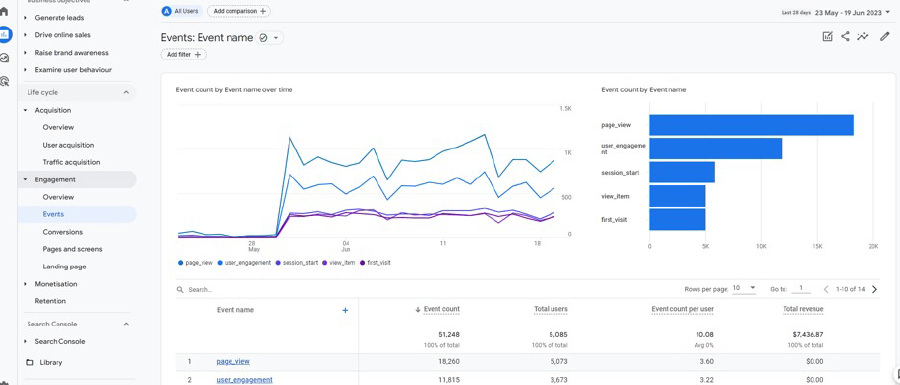
6. Are the said events receiving data?
Check your events are receiving data by going to reports and selecting events under engagement.
7. Have you set up conversions?
Conversions are what you deem as important to track. This could be phone calls, contact forms newsletter sign-ups etc and can vary by business
8. Have you set up custom definitions for extra parameters?
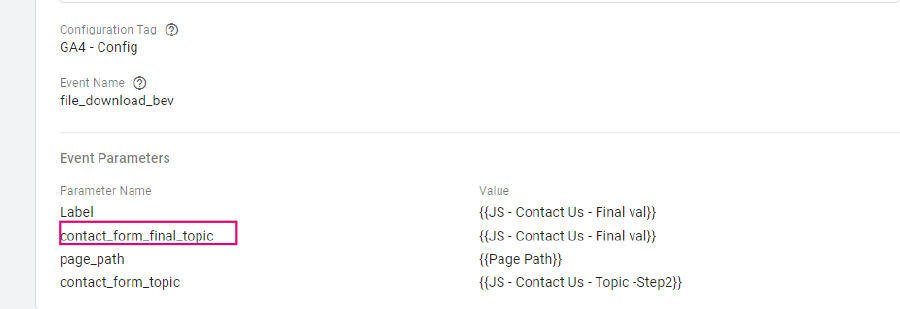
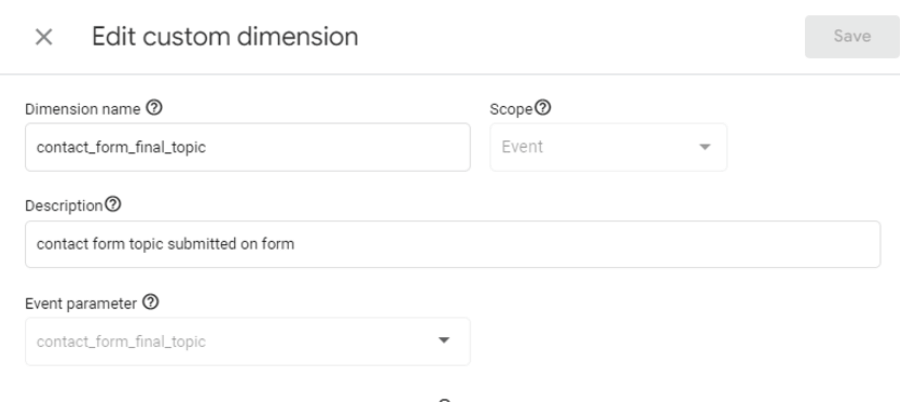
Custom dimensions are employed to incorporate parameters from the data layer into GA4. This allows for the inclusion of specific data layer variables, such as service types, which are not automatically tracked. To ensure the collection of these parameters, they need to be set up in both GA4 and GTM.
You can refer to the automatically collected parameters in GA4 for further insights.
To create custom definitions head to your accounts settings, select custom dimensions and click create custom dimensions. In the dimension name, copy and paste the parameter name from Google Tag Manager.
To set up the Event parameter, copy and paste the above. Ensure each customer dimension are written in lower case and use an underscore.
GTM
GA4
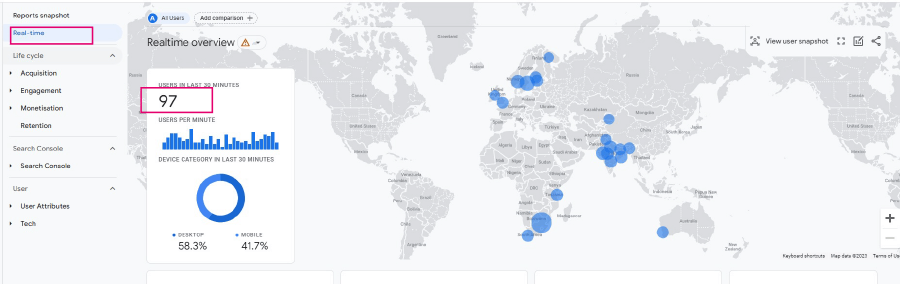
9. Are your conversions and events recording the relevant data?
Head to ‘real-time’ available under your reports snapshot.
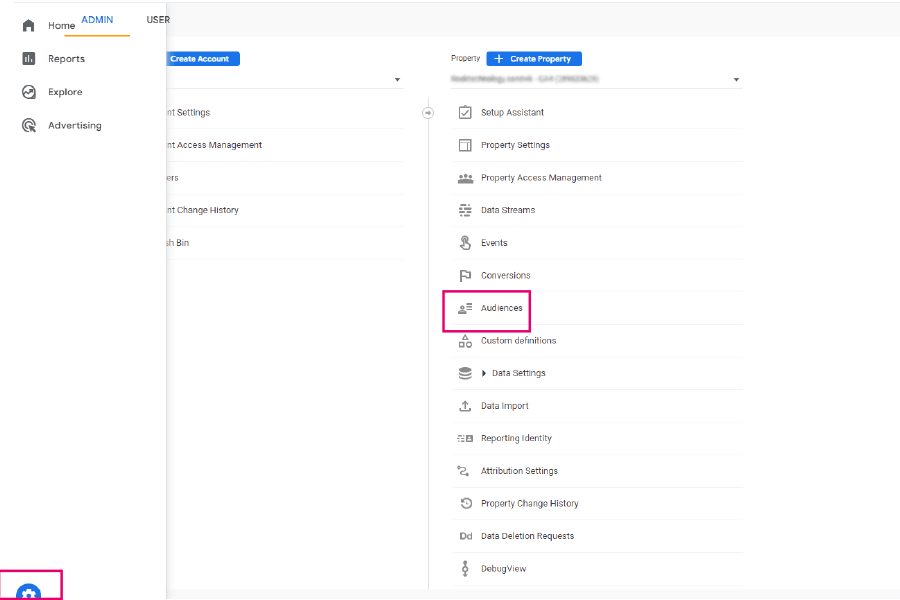
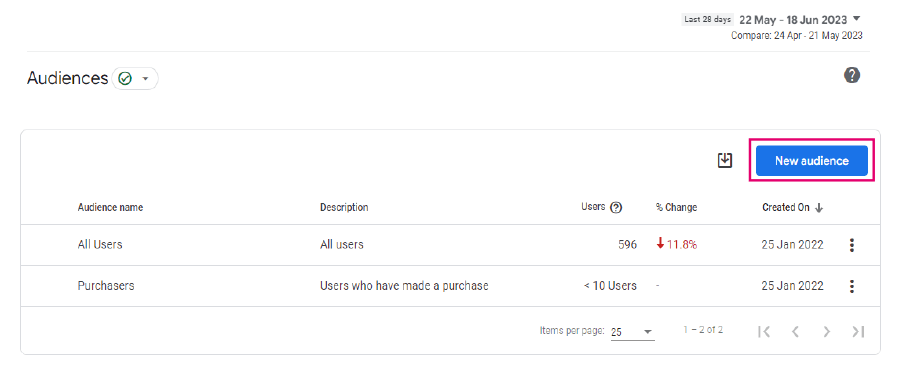
10. Have you set up audiences?
To set up your audience, go to settings, select audience and new audience.
11. Is your GA4 account linked to Google Ads and Search Console?
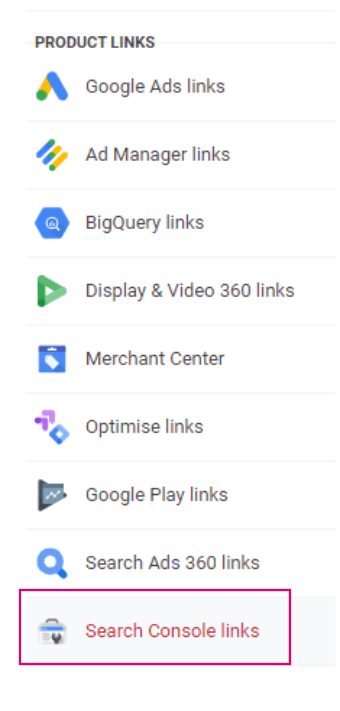
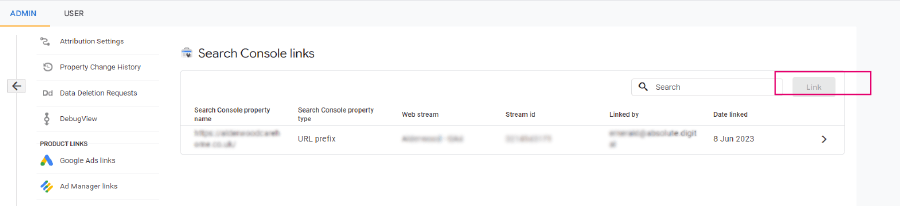
In settings, select search console clicks. Integrate your search console by selecting link.
12. If applicable, check your account linked to Merchant Centre and Big Query
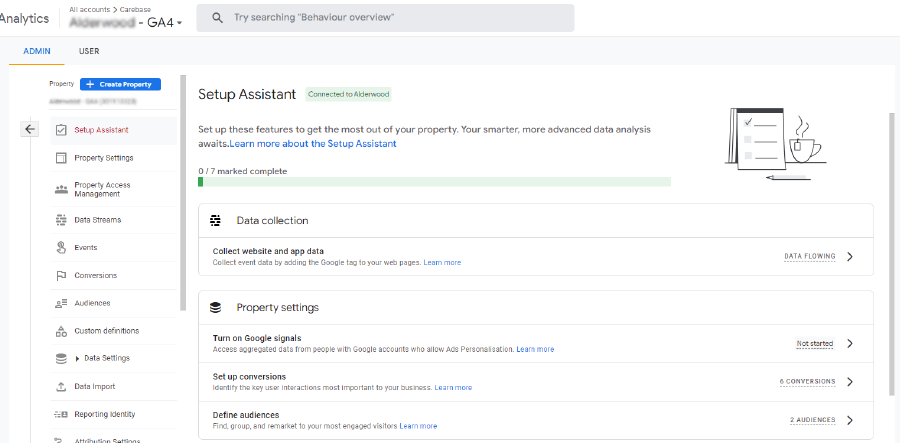
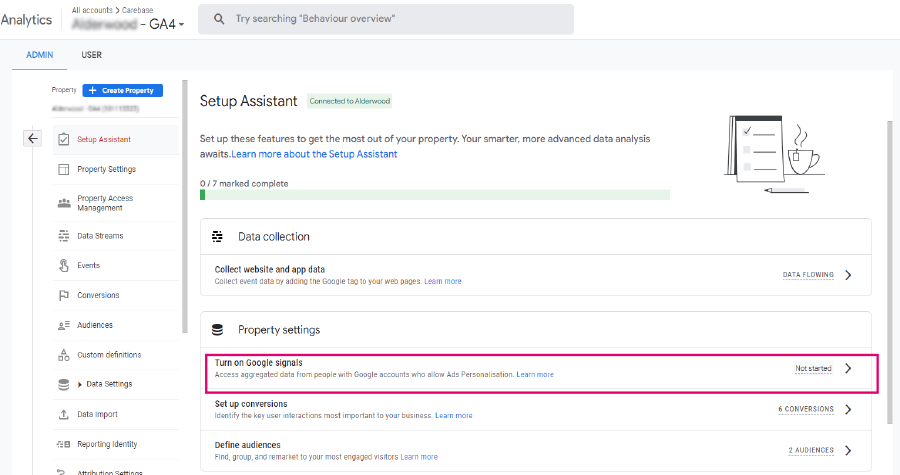
13. Have your activated Google signals in the set-up assistant?
Prepare Your Account Ready For GA4
Book Your Free Consultation
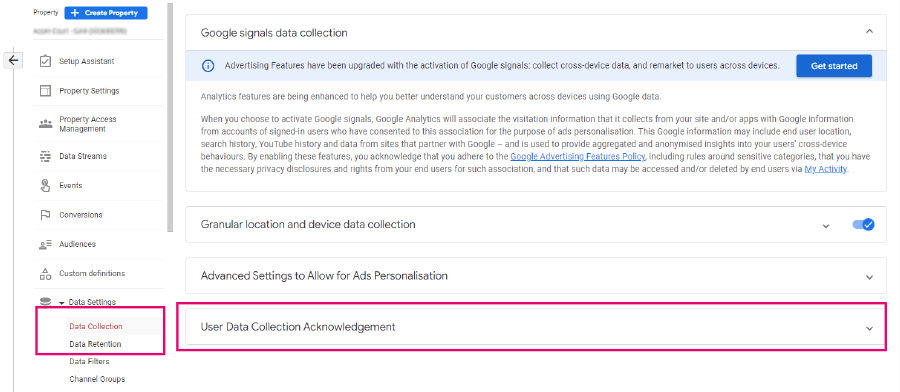
14. Have you checked the information under Google signals data collection and acknowledges user data collection?
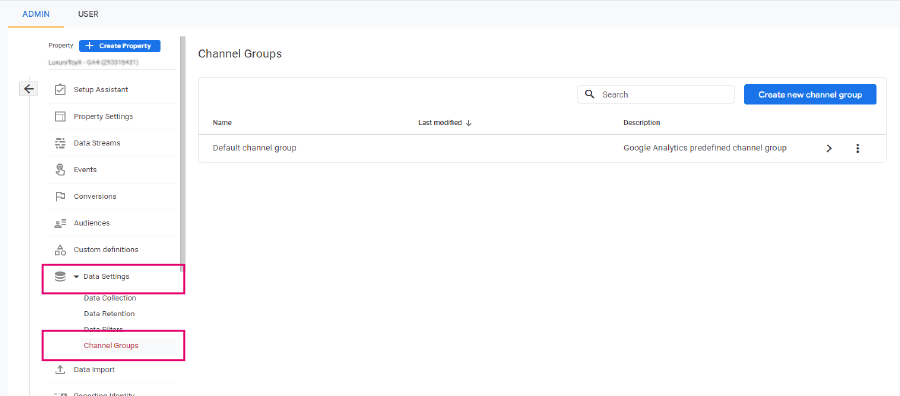
Head to settings, data settings and select data collection. Select user data collection and accept.
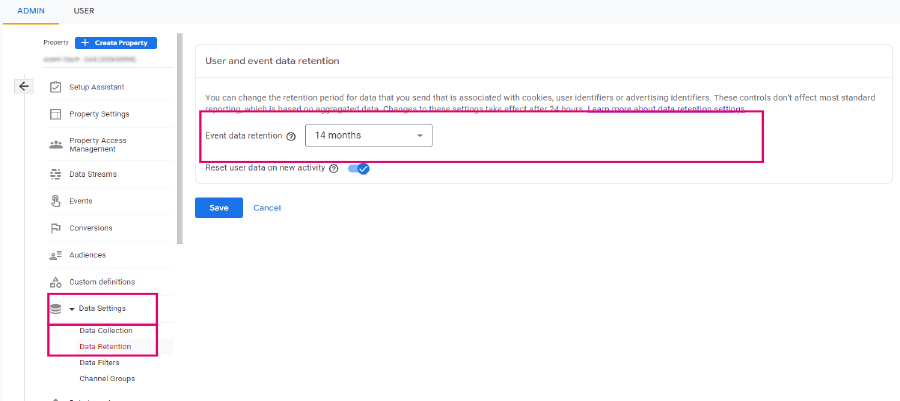
15. Have you reviewed that the data retention time is set to 14 months?
You have 2 options: 2 months and 14 months. 2 months is set as a default. Keeping this data will result in data loss which can be tricky when comparing YoY.
Open settings, data settings and select data retention. Click user data collection and accept.
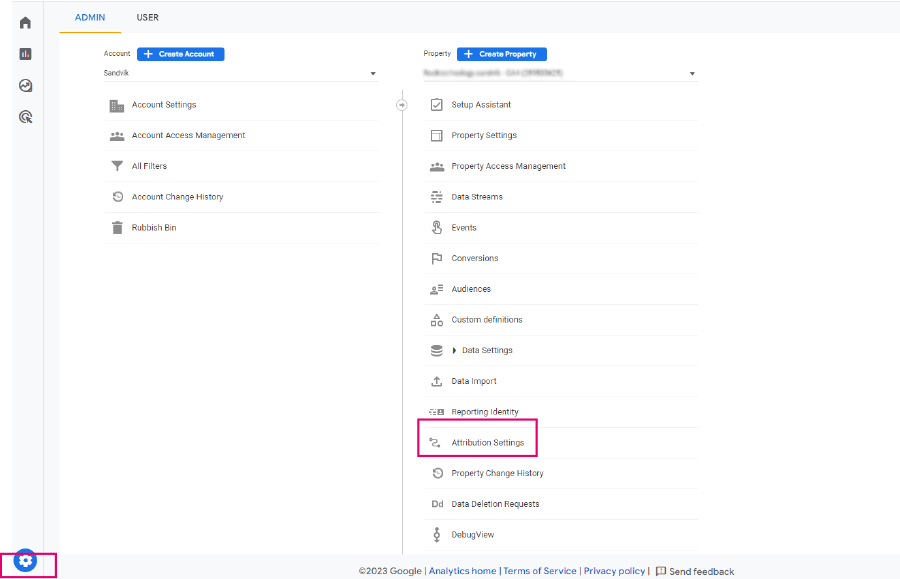
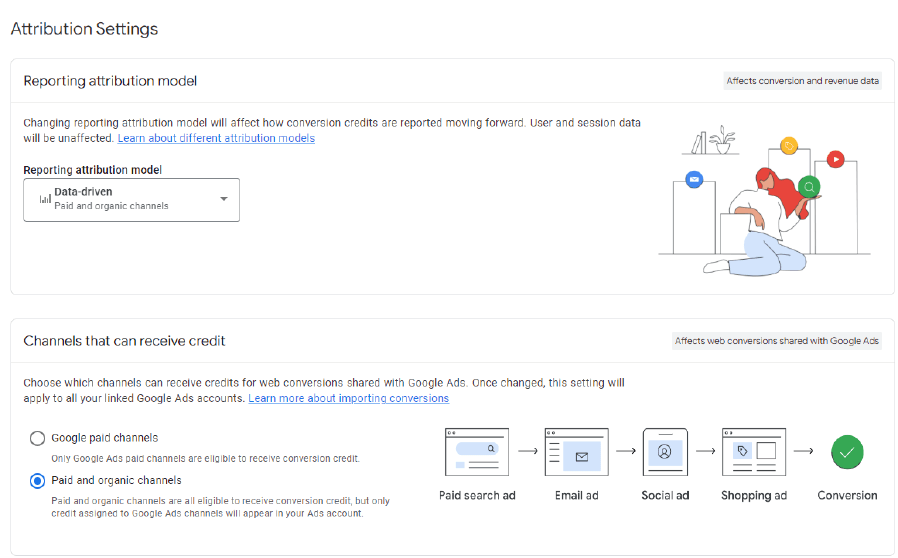
16. Under attribution settings, check that both paid and organic channels can receive credit.
Head to settings, then attribution settings.
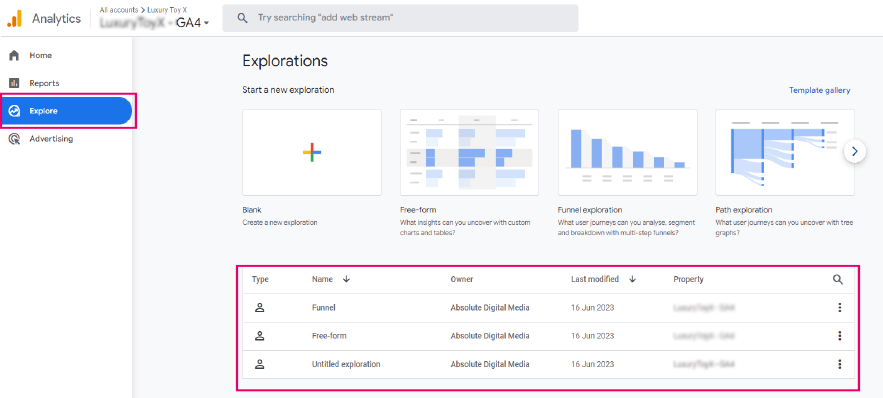
17. Are funnels set up to enable easy data access?
Select explore and begin creating your funnels.
Go to explore and begin creating funnels to easily access the data you need.
Don’t Delay Your Transition To GA4
Arrange A Free Consultation
18. Have you updated your report connectors from Universal Analytics to GA4?
19. Have you created dashboards/widgets to enable your GA4 view?
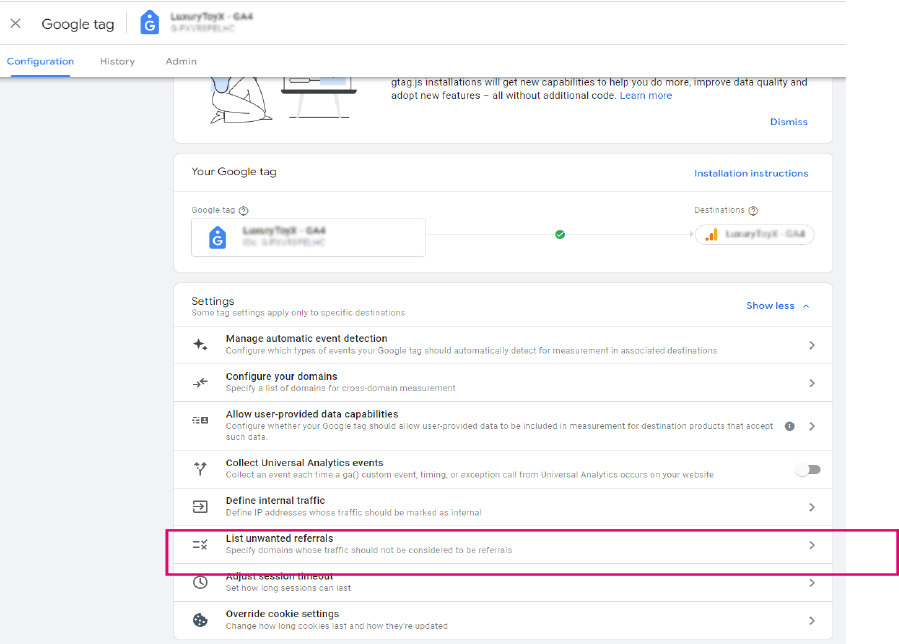
20. Have you included unwanted referrals?
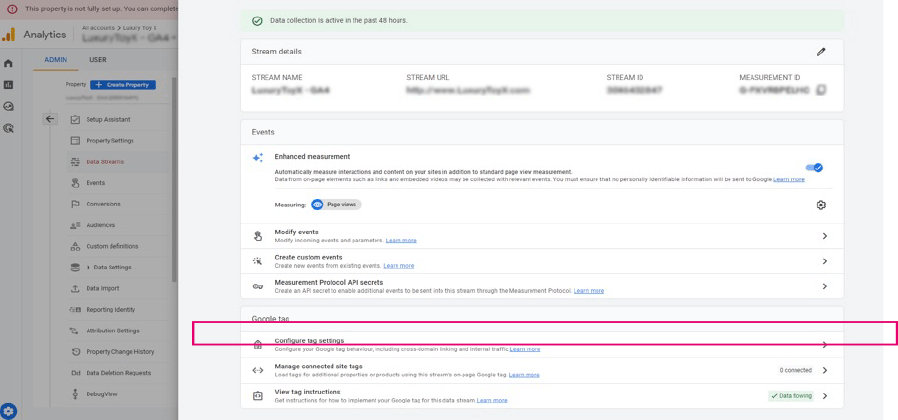
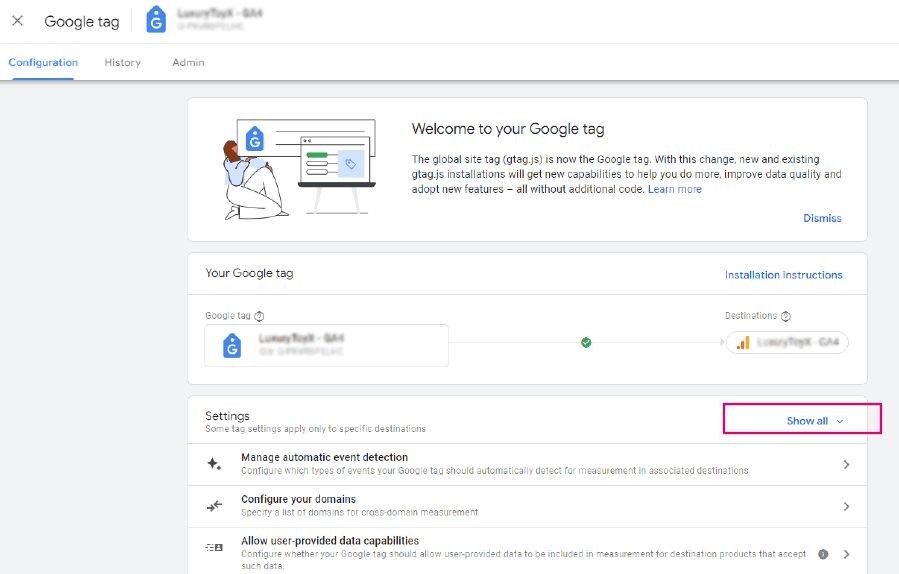
It’s important to included unwanted referrals to ensure you’re excluding data from your website or payment providers such as PayPal. This will help to ensure your traffic is converting from the right channel such as organic and paid. To do this, head to your data stream and select configure tags.
Select show all.
21. Double check property settings
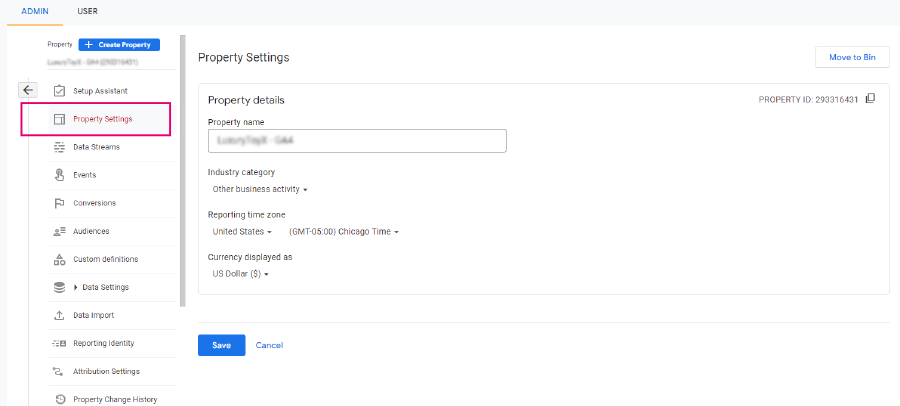
Within your property settings, it’s important to ensure the name and currency is correctly inputted.
Go to settings and select property settings.